Documentation – Different Menus in Different Pages
Installation
Normal Installation
- Download the
different-menus-in-different-pages.zipfile to your computer. - Unzip the file.
- Upload the
different-menus-in-different-pagesdirectory to your/wp-content/plugins/directory. - Activate the plugin through the 'Plugins' menu in WordPress. After activating the plugin you will be auto-redirected to the plugin's settings page.
After installation you need to set up the different menus. Please follow the steps below carefully.
Create a new menu from here. Give your menu a descriptive name so you can identify it later.
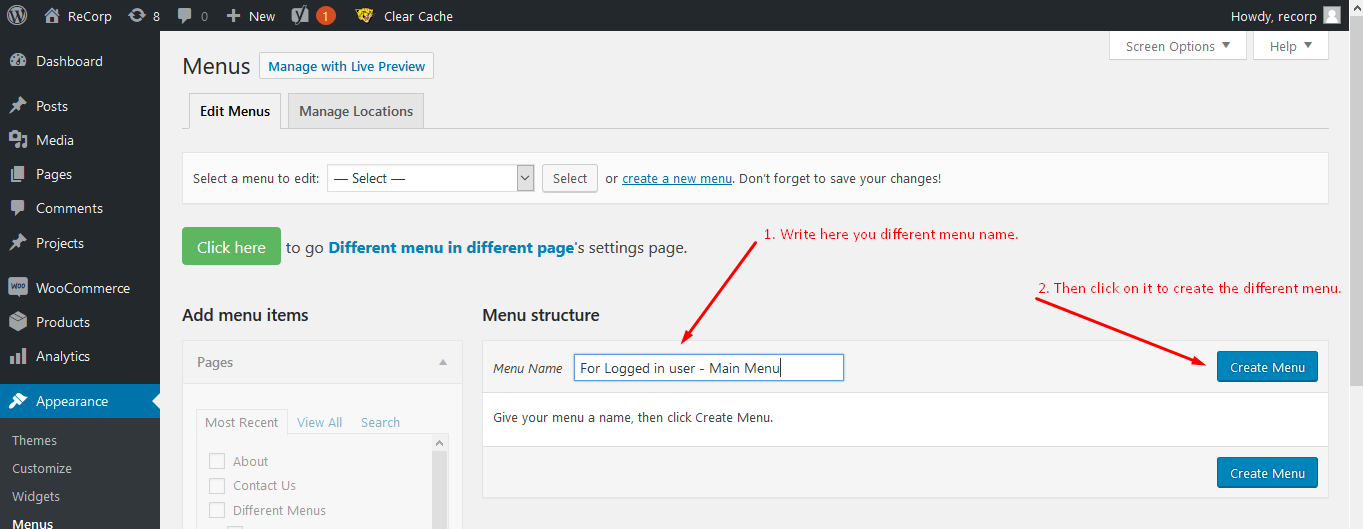
After creating the menu you need to select your favourite menu items for this different menu.
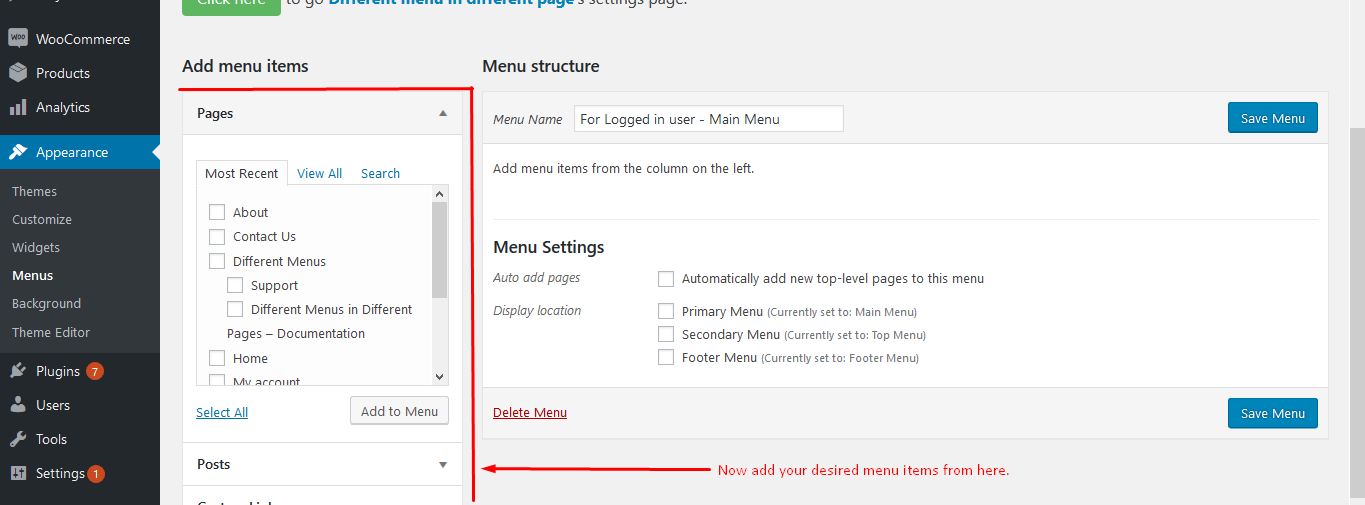
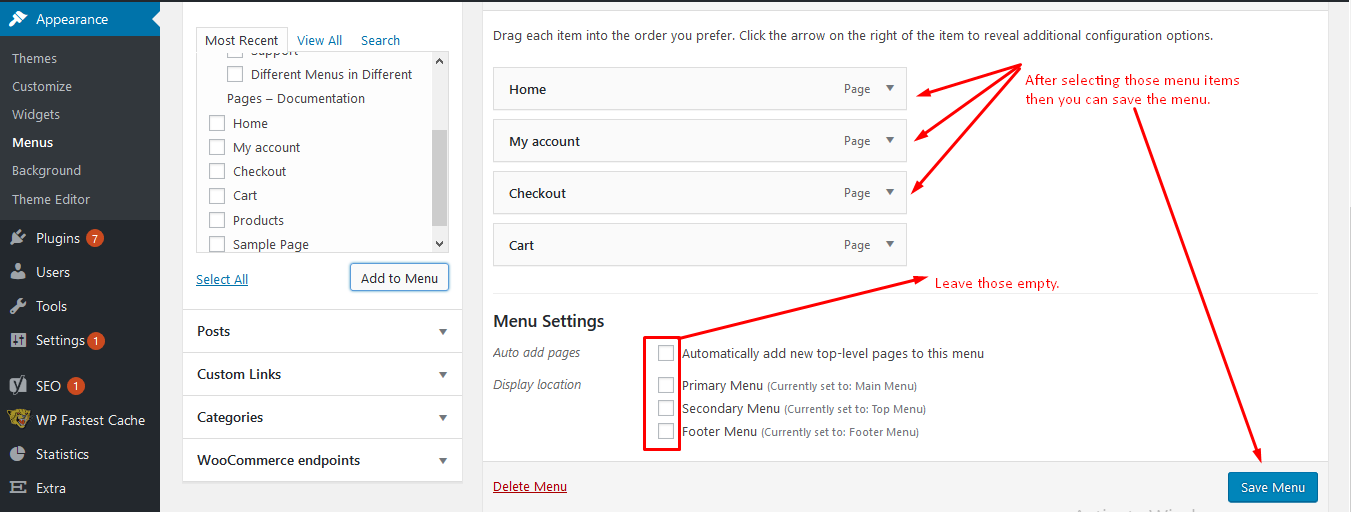
Navigate to the plugin's settings page in your WordPress admin.
Click the "Add different menu" button and select a menu from the selectbox. The menus you created on the nav menu page (Appearance › Menus) will appear here.
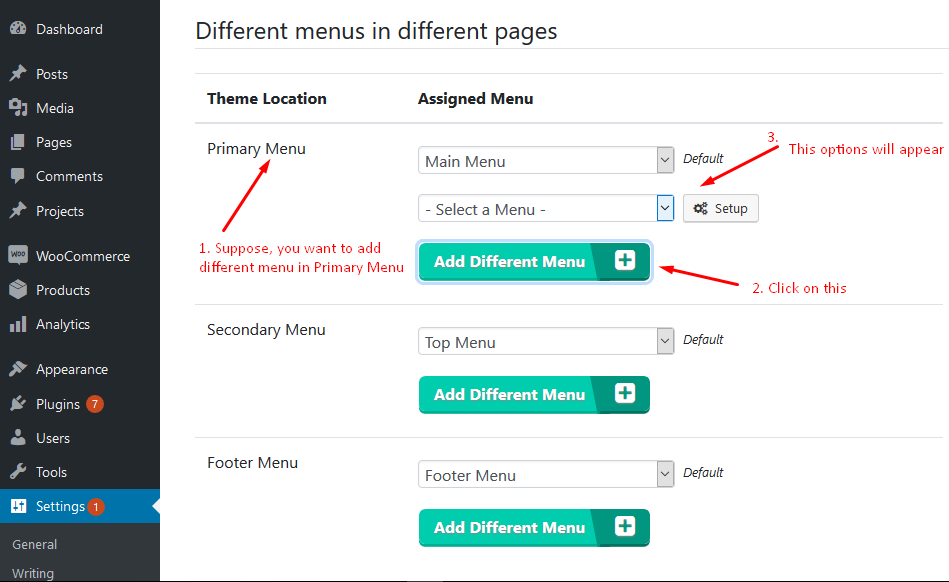
When you click on "Setup", the following popup will appear. From here, select your desired conditions for when this menu should appear.
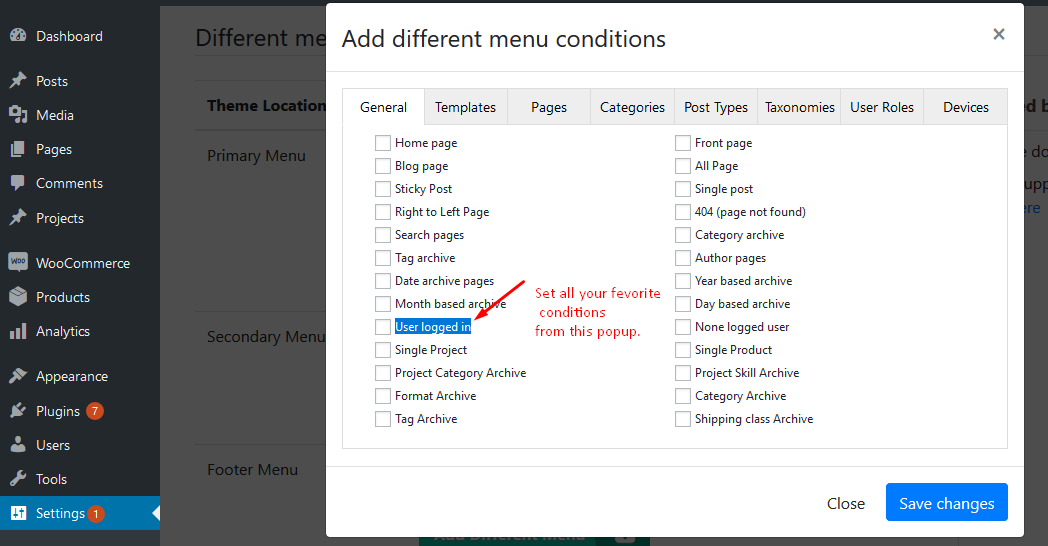
After completing Step 3, click the "Save Changes" button to apply your configuration.
Navigate to the page or post you configured and verify the correct menu is now displayed.
Backup & Restore
Open the plugin's settings page.
In the bottom-left corner of the settings page, click the "Backup or Restore" button.
Click "Backup settings". A file will immediately download to your computer containing all your current plugin settings.
Below the Backup button you will see a file upload field. Select your previously downloaded backup file and upload it. When the restore is complete, the page will automatically reload with your restored settings.
Description
Set different menus for different users, pages, posts, page templates, post types, categories, devices, and more. Here are a few examples of what you can do:
- Set a different menu only if the current
User is logged in. - Set a different menu only if the current
User is not logged in. - Set a different menu if
Device is mobile or tablet or android or iPhone(Pro). - Set different menus for
different countries(Pro). - Set a menu with many visibility rules combined.
- Set a menu for
Admins,Editors, or any user role. - Add a login or register button with a different menu easily.
- Use the built-in Menu Duplicator to clone existing menus.
The plugin is easy to use. Each menu has the ability to replace your theme's default menu with a different one, based on the conditions you define in the settings.
Features
- Easy setup settings page layout
- Different menus can be easily added, edited or deleted
- Support for Home page, Front page, Blog page, Sticky Post, Single post, RTL pages, 404 pages, Search pages and more
- Assign different menus to template pages, post types, taxonomies
- Set user roles per menu — only selected roles see it
- Menu Duplicator — clone any existing menu
- Ajax live update with a modern settings UI
- Everything in the Free version, plus:
- Different menus per device (Android, iPhone, mobile, tablet)
- Different menus for different countries — ideal for multilingual sites
- Search option across all tabs for quick access
- Set different menu directly from a post's or page's edit screen
- Backup and Restore settings options
- Unlimited different menus
- Disable menu option to temporarily turn off a rule
Ready to upgrade to Pro?
Unlock devices, countries, unlimited menus, and more.